The Ultimate Setup Guide for Your Pocketbook Inkpad Eo
The PocketBook InkPad Eo represents a significant shift for a company traditionally known for its dedicated, Linux-based e-readers. By embracing the Android ecosystem and integrating a high-performance color E Ink screen with a versatile stylus interface, PocketBook has created a device that is less of a simple reader and more of a digital paper workstation. For professionals, students, and digital stationery enthusiasts, the InkPad Eo offers a unique blend of productivity and eye comfort. However, transitioning from a standard tablet or even a traditional E Ink reader to this sophisticated tool requires a thoughtful approach to configuration. This guide provides an exhaustive walkthrough for setting up the InkPad Eo to maximize its potential as a note-taking powerhouse and a multimedia-capable e-reader.
Understanding the Hardware and Initial Power-On
Before diving into the software configuration, it is essential to understand the physical capabilities of the InkPad Eo. The device features a 10.3-inch Kaleido 3 color screen, which provides a crisp 300 PPI for black-and-white content and 150 PPI for color. Unlike many of its competitors, the InkPad Eo also includes a built-in camera on the rear, stereo speakers, and a microphone array, making it one of the most hardware-rich E Ink devices on the market. Once unboxed, the first step is to ensure the device is fully charged using the USB-C port located at the bottom. While the battery life of E Ink devices is legendary, the Android 11 operating system and the powerful octa-core processor in the Eo consume more power than a basic e-reader, so starting with a full charge is critical for a smooth firmware update process.
Upon holding the power button, the user is greeted by the initial Android setup wizard. This process includes selecting the system language, connecting to a stable Wi-Fi network, and agreeing to the terms of service. It is highly recommended to connect to Wi-Fi immediately, as the InkPad Eo often has day-one firmware patches that improve stylus latency and screen refresh algorithms. Following the Wi-Fi connection, the device will ask for a Google account login. While some E Ink purists prefer to remain offline, the InkPad Eo is designed to leverage the Google Play Store, so logging in is a prerequisite for a modern workflow.
Detailed Product Analysis: The Professional E Ink Workflow
The PocketBook InkPad Eo occupies a specific niche in the electronics market. It is not trying to compete with the iPad Pro in terms of raw refresh speed or app fluidity; instead, it targets the "paper-replacement" market. The inclusion of a Wacom-layer screen allows for precision writing that feels remarkably tactile. For the business professional, this means the ability to sign PDFs, annotate reports, and manage calendars without the blue-light fatigue associated with traditional LCD or OLED screens.
One of the standout features of the InkPad Eo is the implementation of the Android 11 operating system. Unlike previous PocketBook models that used a closed system, the Eo allows for the installation of apps like Microsoft OneNote, Evernote, and Slack. However, Android on E Ink requires specialized management. The InkPad Eo includes a dedicated "Optimization" menu for each app, allowing users to adjust contrast, brightness, and refresh modes to prevent "ghosting"—the faint remains of previous images on the screen. Mastering these settings is the difference between a frustrating experience and a seamless one.
The integrated camera is another controversial but useful addition. While 8 megapixels may seem low compared to modern smartphones, the camera on the Eo is specialized for document scanning. Combined with Optical Character Recognition (OCR) software available via the Play Store, the Eo becomes a portable scanner that allows users to capture physical documents and immediately begin annotating them on an E Ink surface. This creates an end-to-end analog-to-digital workflow that is rarely seen in the e-note category.
Key Pros and Cons of the InkPad Eo
- Pro: High-Resolution Kaleido 3 Display – Offers a vibrant color experience for comics, textbooks, and color-coded notes while maintaining high-density text for reading.
- Pro: Open Android 11 Ecosystem – The freedom to install third-party apps transforms the device from a reader into a versatile tablet.
- Pro: Wacom Stylus Support – No batteries required for the pen, offering 4,096 levels of pressure sensitivity for natural handwriting and sketching.
- Pro: Comprehensive Hardware Suite – Included camera, speakers, and microphone make it suitable for voice memos, document scanning, and even light web conferencing.
- Con: Learning Curve – The Android-on-E-Ink interface requires manual optimization for third-party apps to look their best.
- Con: Weight Distribution – At roughly 470 grams, the device can feel heavy during extended reading sessions compared to 7-inch e-readers.
- Con: Modest Battery Life – While better than a traditional tablet, the octa-core processor and Android OS mean you will be charging it more frequently than a non-Android e-reader.
Configuring the SMARTlight and Color Settings
After the initial software setup, the next priority is tailoring the display. The InkPad Eo features PocketBook's signature SMARTlight technology. This allows users to adjust not just the brightness, but also the color temperature of the front light. During the day, a cooler, bluish-white light can help with focus and clarity. In the evening, shifting to a warmer, amber tone reduces eye strain and helps maintain natural sleep cycles. Within the settings, users can create "Automatic Profiles" that shift the light based on the time of day, a feature that many users find indispensable once configured.
Because the Eo uses a color screen, there are additional layers of calibration. The "Vividness" and "Saturation" settings are vital. For reading black-and-white novels, turning the saturation down can actually make the background look whiter and the text sharper. Conversely, when viewing medical diagrams or architectural plans, upping the saturation helps distinguish between different colored lines or layers. The Eo allows for per-app color profiles, which is a significant advantage for users who switch between Kindle (for reading) and specialized note-taking apps.
Shop the latest Electronics picks on Amazon.
View Offers →A Detailed Comparison: InkPad Eo vs. Industry Standards
When choosing a high-end E Ink device, buyers often weigh the InkPad Eo against other popular 10-inch offerings. The following table highlights the technical differences that define the Eo's position in the market.
| Feature | PocketBook InkPad Eo | Standard 10.3" Monochrome E-Note | Standard 10" Multimedia Tablet |
|---|---|---|---|
| Display Type | E Ink Kaleido 3 (Color) | E Ink Carta 1200 (B&W) | LCD / OLED (Full Color) |
| Operating System | Android 11 | Proprietary Linux / Android 10 | iPadOS / Android 13+ |
| Input Method | Wacom Stylus & Touch | Wacom Stylus & Touch | Active Capacitive Stylus |
| Camera | Yes (8MP Rear) | No | Yes (Front & Rear) |
| Audio | Stereo Speakers & Mic | Often Bluetooth Only | Quad Speakers & High-End Mics |
| Eye Strain | Extremely Low | Extremely Low | High (Backlit) |
Optimizing the Note-Taking Experience
For many, the primary reason for purchasing the InkPad Eo is the note-taking capability. The native note application is robust, offering various templates such as grid, lined, and specialized music staff paper. To set this up effectively, users should first calibrate the stylus in the settings menu. This ensures that the digital "ink" appears exactly where the nib touches the screen, minimizing parallax error.
Organization is the next step. The Eo allows users to create folders and subfolders for their notebooks. A common practice for students is to create a top-level…
Another "pro tip" for the note-taking setup involves the "Lasso" tool and handwriting recognition. The InkPad Eo can convert handwritten scribbles into typed text. To make the most of this, go into the language settings and ensure the correct handwriting recognition packs are downloaded. This allows for the indexing of handwritten notes, making them searchable—a feature that transforms the device from a simple pad of paper into a searchable database of your own thoughts.
Buying Guide: Is the InkPad Eo Right for You?
Purchasing an e-note device is a significant investment, often costing as much as a mid-range laptop. Potential buyers should consider their primary use cases before committing. If your only goal is to read fiction before bed, the InkPad Eo is likely more device than you need; a smaller, lighter monochrome reader from the InkPad or Era line would suffice. However, if your needs align with the following criteria, the Eo is a top-tier choice.
The Academic User: Students who need to read dense textbooks often find monochrome screens limiting because charts and graphs lose their meaning without color. The InkPad Eo solves this while allowing for marginalia and the creation of comprehensive study guides next to the text. The ability to record lectures using the built-in microphone while taking notes is a game-changer for university environments.
The Remote Professional: For those who spend eight hours a day staring at screens, switching to E Ink for emails, document review, and task management can significantly reduce "computer vision syndrome." The Eo’s Android base means you don’t have to give up your professional tools like Microsoft Teams or Trello to get the benefits of E Ink.
Looking for the best Electronics deals on Amazon?
Shop Amazon →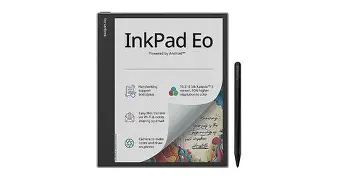
The Creative Hobbyist: Artists who enjoy sketching or journaling will appreciate the color layer. While not suitable for high-end digital painting due to the limited color palette of E Ink (4,096 colors vs. 16 million on LCD), it is perfect for watercolor-style sketches, urban sketching, and "bujo" (bullet journaling) enthusiasts who want to add a splash of color to their layouts.
Maximizing App Performance and Refresh Rates
The final stage of the ultimate setup involves managing the refresh modes. E Ink technology works by physically moving charged particles of ink. This is slow compared to the liquid crystals of a standard tablet. To mitigate this, the InkPad Eo offers several refresh modes: HD Mode for maximum clarity (best for reading), Balanced Mode for general navigation, and Fast Mode (or A2 mode) for scrolling through web pages or apps. There is even a Video Mode that drastically increases refresh speeds at the cost of significant image quality.
During setup, users should assign specific modes to specific apps. For example, the Kindle app should be set to HD Mode to ensure the fonts are as sharp as possible. A web browser like Chrome should be set to Fast Mode to allow for smoother scrolling. The InkPad Eo handles these transitions automatically once they are configured in the App Optimization menu, allowing the user to forget about the limitations of E Ink and focus on the task at hand.
Additionally, users should investigate the "Gesture" settings. The Eo allows for customizable swipes along the edges of the screen. Setting a swipe along the left edge to control brightness and a swipe along the right edge to control the SMARTlight temperature allows for on-the-fly adjustments without digging through menus. Configuring a "long press" of the physical power button to take a screenshot or trigger a full-screen refresh to clear ghosting is another highly recommended tweak.
Conclusion
The PocketBook InkPad Eo is a versatile, sophisticated device that bridges the gap between leisure reading and professional productivity. By taking the time to properly configure the Android environment, optimize the Kaleido 3 color display, and organize a cloud-synced note-taking workflow, users can unlock a level of utility that basic e-readers simply cannot match. While the device demands a bit more technical interaction than a standard e-reader, the payoff is a personalized digital workspace that respects your eyesight and adapts to your professional and creative needs. Whether you are scanning documents with the integrated camera, annotating a complex color PDF, or simply enjoying a graphic novel in the evening, the InkPad Eo stands as one of the most capable and flexible E Ink tools currently available.